
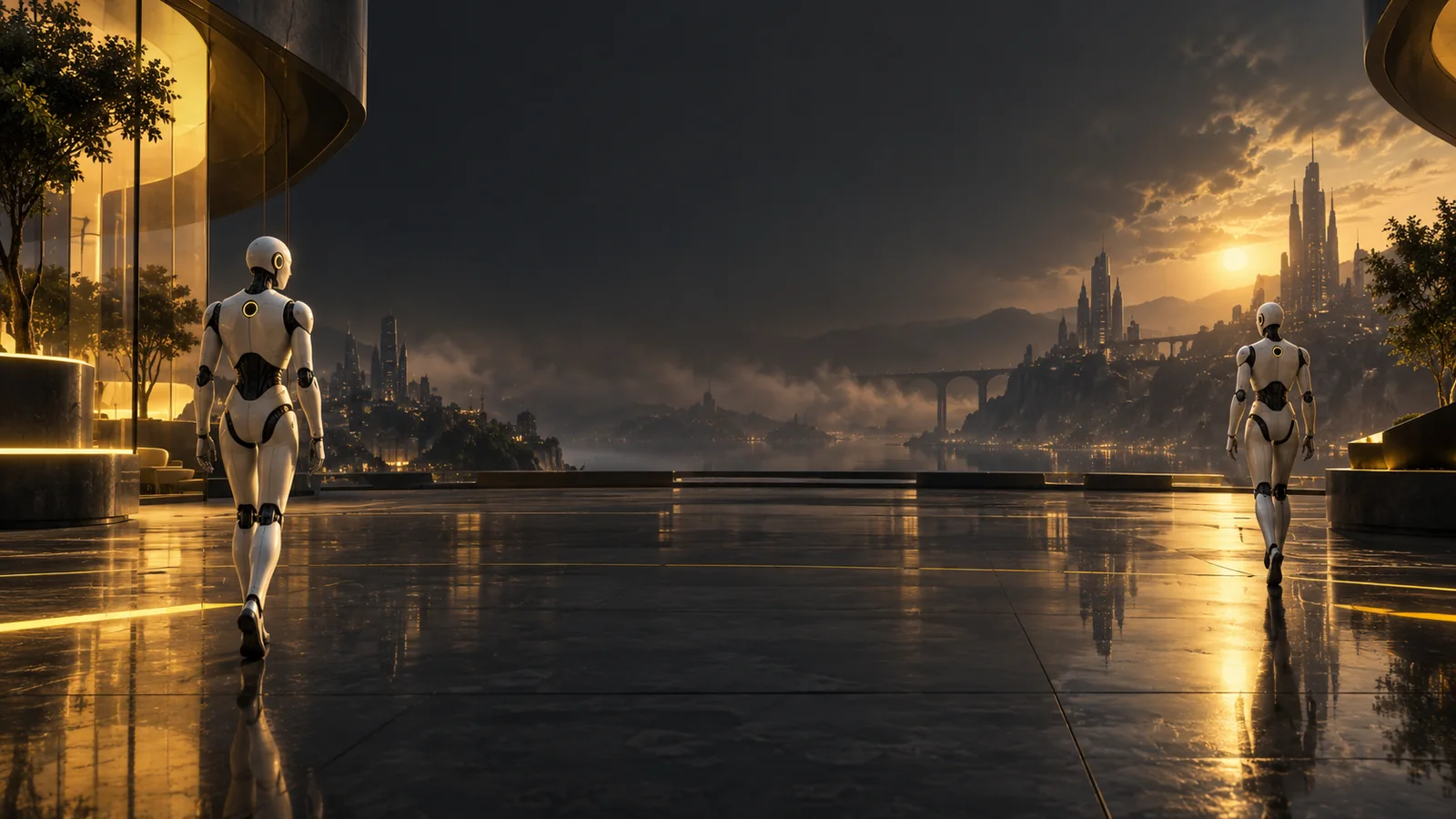
Give the viewer a focal point
Name the person, object, or place that matters most. Describe enough of the setting to make the action understandable.
Explore a product reveal, an illustrated world, or a story beat through motion. Start with text or an image on Nano Banana 3, then describe the action and camera direction that make the scene useful to your project.
Plan the moving scene
Decide what the viewer should follow before adding motion. The AI video generator gives you a way to explore how a subject, action, and camera direction work together.
Name the person, object, or place that matters most. Describe enough of the setting to make the action understandable.
A turn, reveal, or small gesture can carry the scene. Explain what changes and why that movement matters to the idea.
Describe whether the view stays still, follows the subject, or moves closer. Keep the camera direction consistent with what you want the viewer to notice.
Use text when you are defining the scene, or a supported image input when you have a visual reference. Review the selected model’s available modes and settings.
Video planning inspiration
Use these original concept artworks to plan a subject, atmosphere, or camera direction. Choose the visual details that fit your brief, then describe how you want the scene to move.
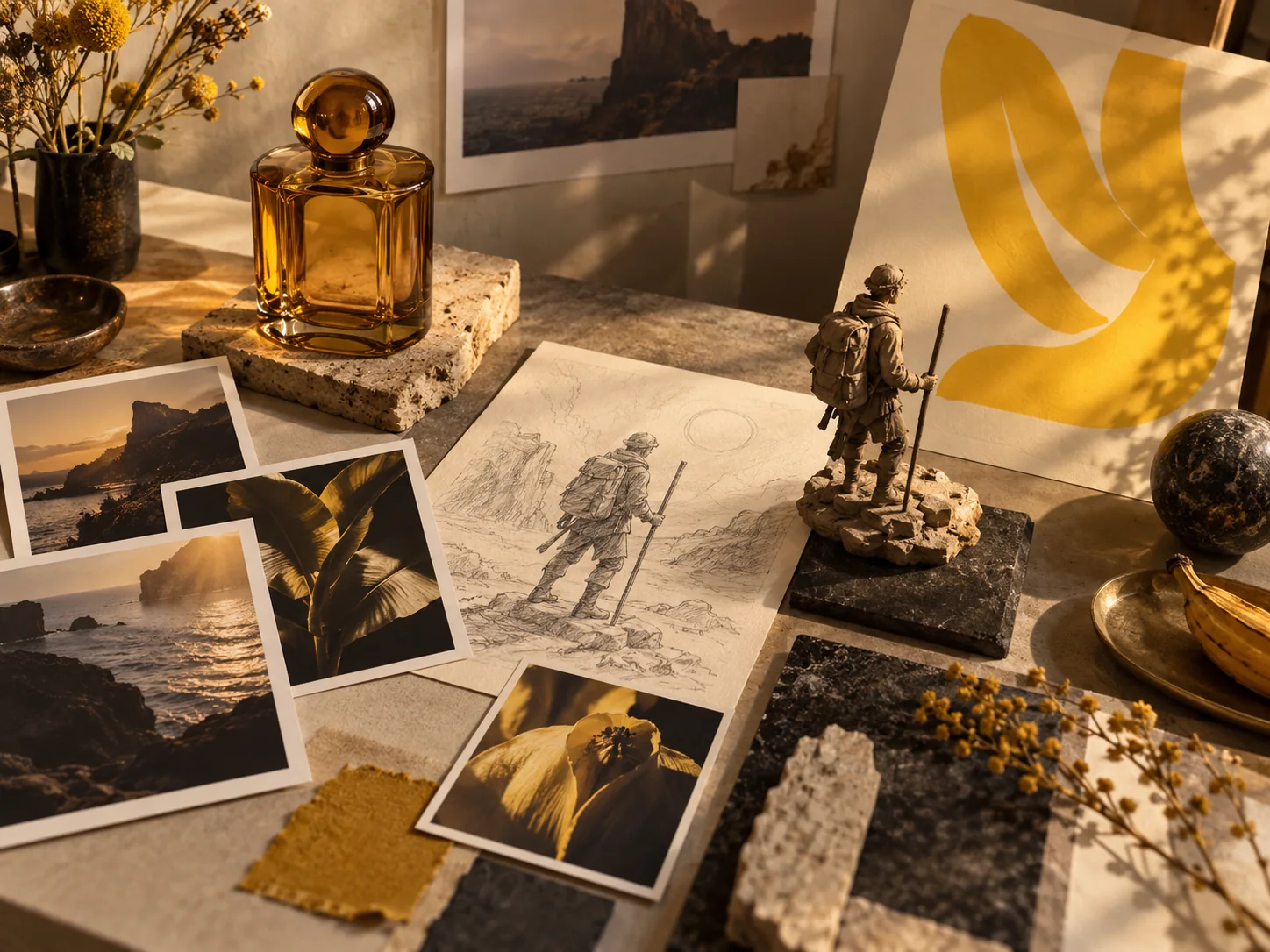
Use a mood board to choose a subject, palette, and viewpoint for a social clip. Then describe the action that connects those visual choices.
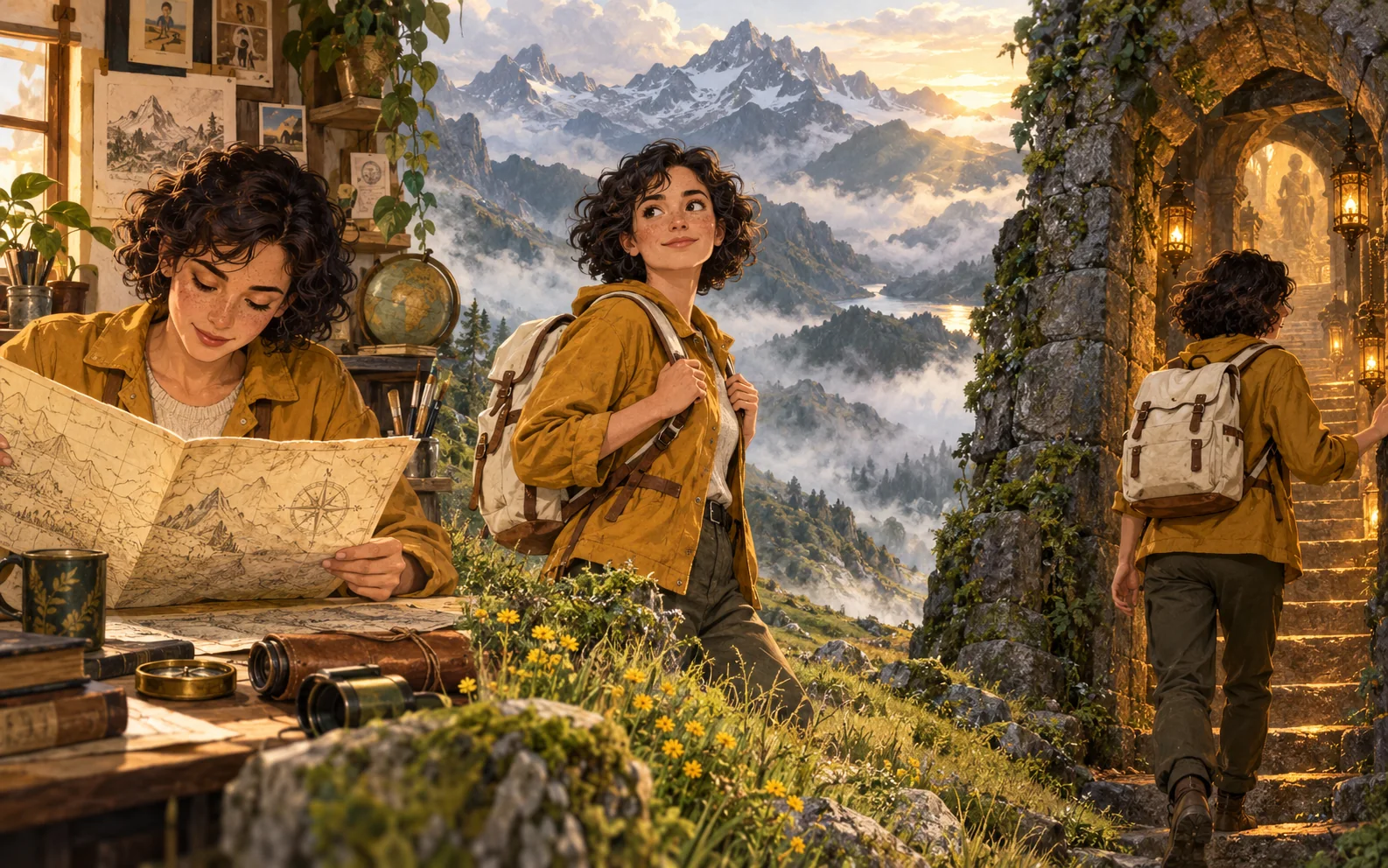
A map, a landscape, or a doorway can anchor a story moment. Decide what the character does and how the camera reveals the setting.

Use light, surfaces, and a background to shape a product scene. Specify a reveal or camera movement that keeps attention on the product.
Video creation steps
Treat the first clip as a way to evaluate your direction. A focused brief makes it easier to identify whether the action, framing, or pace needs attention.
01
Decide on the subject and one event worth following. Describe the setting or prepare an image for a mode that supports it.
02
Explain the subject’s action and the camera direction. Mention any visual details you want to keep recognizable.
03
Choose an available video model and a mode that fits your input. Review its settings and displayed credit cost, then sign in to generate.
04
Review the motion and composition through the whole clip. Change the part of the prompt or reference that needs attention before trying another version.
Using the AI video generator
Guidance on signup credits, starting images, camera prompts, and choosing generation settings.
Free signup credits are available only when a signup reward applies to your account. After registering, check your balance and the cost shown in the generator. You need enough credits for the selected settings.
Use a text-to-video mode when you want to describe the scene from scratch. Use a supported image-to-video mode when you have a picture to guide its appearance. Check that the selected model supports your input.
Use a clear direction such as a fixed view, a slow move closer, or a camera following the subject. Pair it with the subject’s action so the prompt describes one coherent scene.
Confirm the input mode and any required references. Review the available format and clip options for the selected model, then check the displayed credit cost before submitting.
Reduce the prompt to one subject, one main action, and one camera direction. Remove competing scene changes, then review whether the next version makes the intended moment easier to follow.
Create with Nano Banana 3
Bring a scene and a clear action to the AI video generator. Watch the first version, then develop the direction that serves your story.