
Make the subject easy to read
Name the main subject and the details a viewer should notice. Describe the background and lighting in relation to that focal point.
Give a product brief, character idea, or campaign concept a picture you can evaluate. Create from text or a reference image on Nano Banana 3, then refine the details that matter to your project.
Shape the visual brief
A shop image should draw attention to the product; a character concept should make a personality visible. Use the AI image generator to explore the visual choices that serve your purpose.
Name the main subject and the details a viewer should notice. Describe the background and lighting in relation to that focal point.
With a model that accepts reference images, use a photo or sketch to guide the direction. Explain which qualities you want to carry into the new picture.
Consider the space around the subject and choose a supported aspect ratio for your layout. Leave room in your brief for any text you plan to add later.
Try a different palette, setting, or framing in your next prompt. Compare the result with your brief to decide which direction to develop.
Visual inspiration
Use these original concept artworks to think about the picture your project needs. Bring your own subject and purpose to the prompt rather than copying every detail.
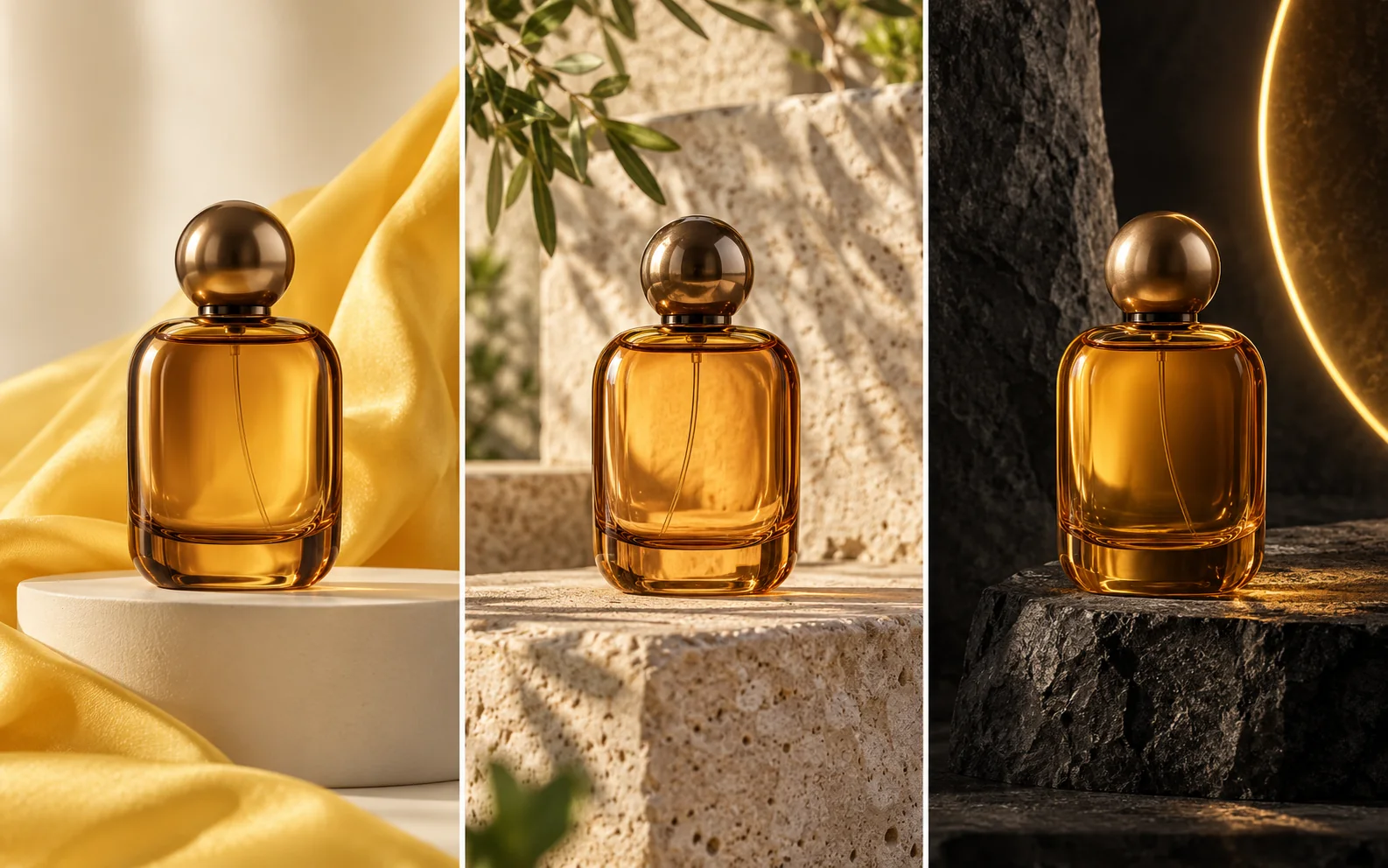
Explore surfaces, props, and lighting that help explain the mood or context of a product presentation.
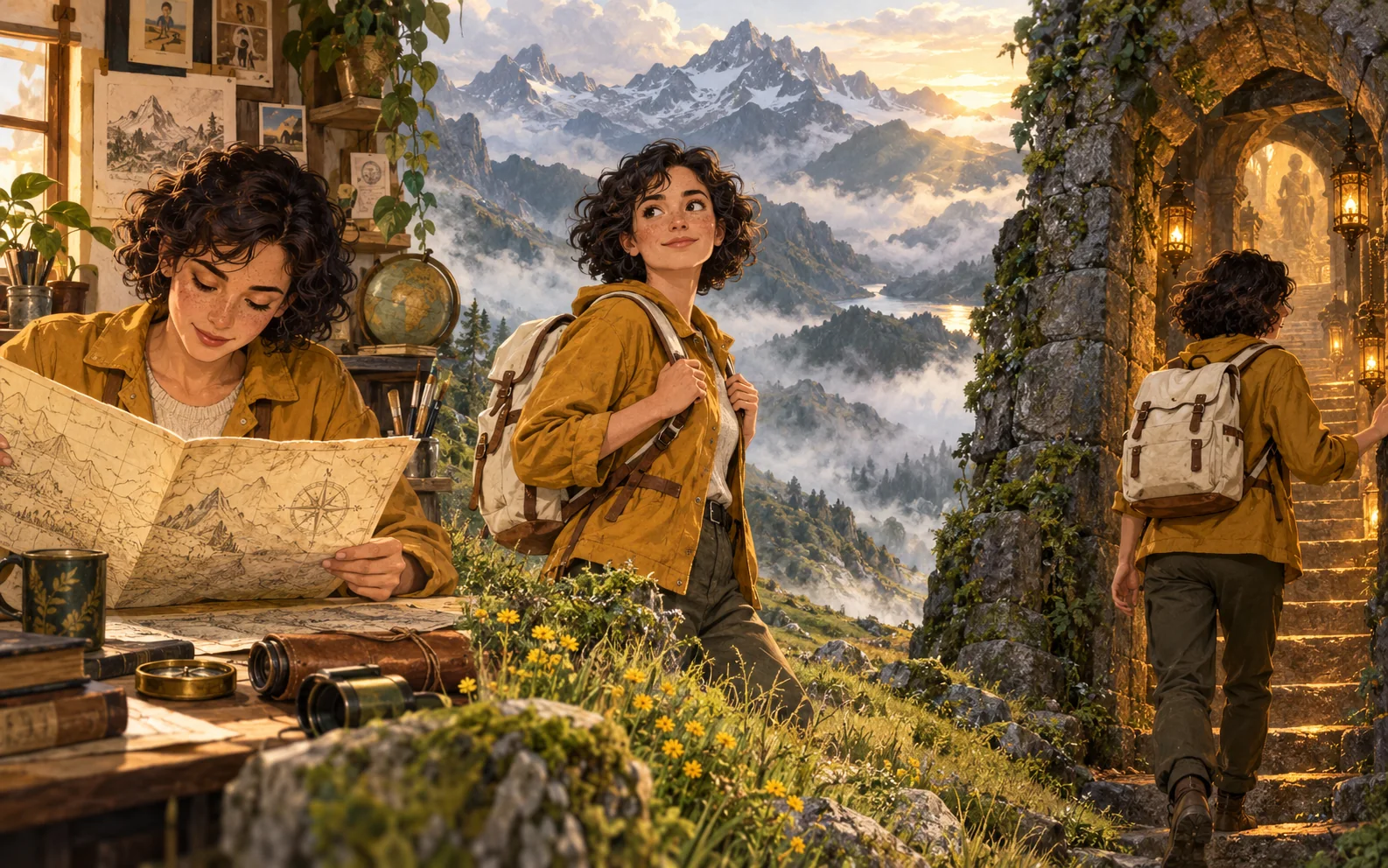
Describe clothing, expression, and surroundings to explore a personality before developing the wider story.
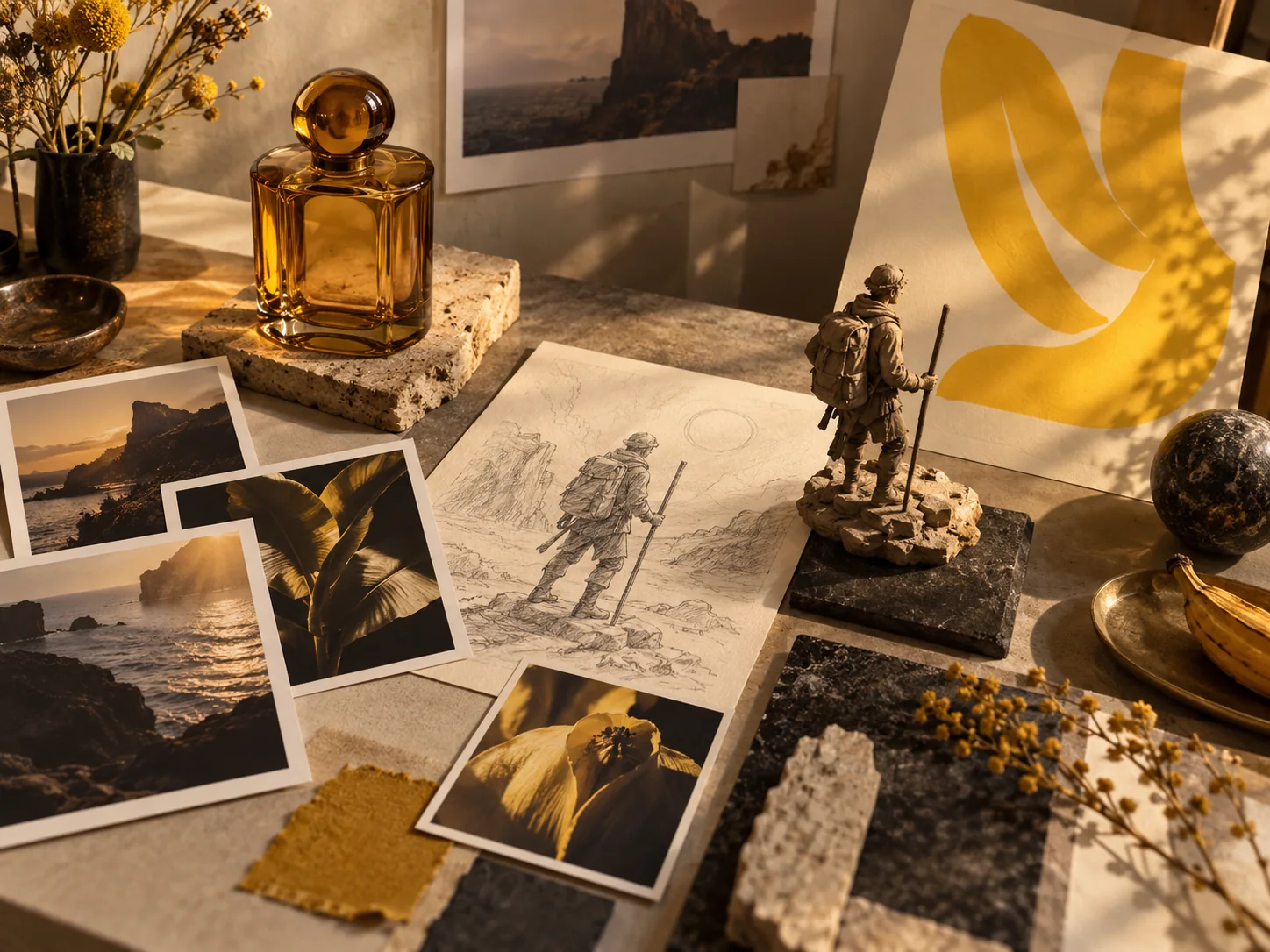
Explore a palette and composition for a campaign, then use the image to discuss the direction with your team.
Image creation steps
Choose one intended use before generating. It gives you a practical way to decide whether the image needs a different subject, composition, or style.
01
Decide whether you need a product scene, character study, or campaign concept. Write down what should stand out.
02
Describe the subject and its surroundings, then add the light, palette, and framing that support your idea.
03
Choose an available image model, add references if supported, and review the settings and displayed credit cost. Sign in to generate.
04
Check the focal point, shapes, and composition. Use a focused prompt change for another version if the result needs work.
Using the AI image generator
What to know about signup credits, prompt detail, reference images, and reviewing a result.
Free signup credits are available only when a signup reward applies to your account. After registering, check your balance and the cost shown in the generator. You need enough credits for the selected settings.
Start with the subject and intended use, then specify the setting, light, and composition. Add details that affect the picture you need; avoid piling on unrelated styles. Follow the prompt limit shown for your selected model.
Choose a model that supports image references. Upload your image and explain whether its subject, colors, composition, or another quality should guide the result. Check the supported upload options in the generator.
State the important detail explicitly in the next prompt and narrow the change you are asking for. If reference input is available, provide an image that shows the detail clearly. Review the next result before relying on it.
Inspect the image at the size you plan to use. Check visible text, object shapes, edges, and any details that represent your product or character. Make sure the crop leaves room for the rest of your layout.
Create with Nano Banana 3
Bring a clear subject and a purpose to the AI image generator. Use your first result to decide what to develop next.